
- BedtimeREMI's face asleep
- Wake-up timeREMI's face awake
As an Amazon Associate I earn from qualifying purchases.
Amazon offers a free 30-day Prime trial, with free delivery on eligible items.
Prices and stock are set by the retailer and change without notice. We print no price of our own.
The tradeoff: Everything is set in the app over Wi-Fi, and it must stay plugged in. Without Wi-Fi its saved alarms keep running, but you cannot change them until the connection is back.
From UrbanHello’s own pages and manual: the sources.
Set this clock up
- Plug REMI in, install the REMI app and link the clock to it over Wi-Fi. Every alarm, timer and setting is made in the app.
- In the app’s Schedules tab, tap + to add an alarm: set its time, the days it repeats, REMI’s face, the night-light brightness and any music, with its volume and how long it plays. A weekday alarm and a later weekend one can sit side by side.
- For naps, choose Timer at the top of the Schedules tab and add up to five timers, each with its own length, face, night light and music. Press the hourglass button under REMI once for Timer 1, twice for Timer 2, and so on; press it again to stop. When a timer ends, REMI goes back to how it was.
- The other buttons under REMI turn the night light on or off, play music or stories saved on REMI, change the volume and switch on Bluetooth speaker mode. In each alarm you can switch the Play button off, so your child cannot start music after bedtime.
- If an alarm turns REMI’s Wi-Fi off for the night, add another that turns it back on in the morning: REMI does not reconnect by itself.
Check the age warning and whether your child is ready separately, and see how to set an OK-to-wake clock for other clocks.
Setup and everyday controls
You set it up in the REMI app, with an account, over Wi-Fi.
- How you set it
- Set up in an app
- Buttons on the clock
- Yes
- Change it from your phone
- Yes
- Account needed
- Yes
When grandma, a sitter or the other parent sets it
REMI is set up and changed in its app over Wi-Fi. UrbanHello's product page does not say whether a second parent or a grandparent can be added to the same REMI.
Schedules, light and sound
Runs its saved alarms and face changes by itself, on the days you choose for each.
What you can schedule on this clock
- Bedtime light at a set timeYes
- Wake-up light at a set timeYes
- Nap timerYes
- Different weekend timesYes
 Wake-up light at a set time
- Yes
- Bedtime light at a set time
- Yes
 Nap timer
- Yes
 Weekday and weekend times
- Yes
 Several light or sound changes a night
- Yes
- Silent wake-up light
- Yes
 Alarm sound
- Yes
- Sound machine
- Yes
- Dimmable light
- Yes
Features the maker’s manual doesn’t mention aren’t listed here, so the clock matcher won’t suggest this clock for them.
A nap timer and a nap wake-up time work differently. The planner keeps them separate.
Clocks changing, or an early riser? Move the wake-up light in small steps with the clock-change planner.
Without Wi-Fi or a phone
You cannot change the schedules while the internet is down, but saved ones keep playing.
UrbanHello says its saved alarms, timers and face changes all keep running, and music and stories saved on REMI still play with its Play button.
- The baby monitor does not work
- Music from a phone needs the internet, except over Bluetooth
Setup network: 2.4 GHz.
Power, and what happens in a power cut
Plugged in
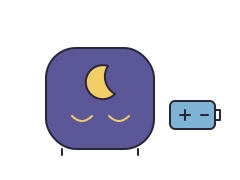

Needs to stay plugged in · USB cable and wall plug
REMI has to be plugged in to work, so its face, light and sounds stop in a power cut.
- Runs on battery?
- Needs to stay plugged in
- Power connection
- USB cable and wall plug
See why a battery that keeps the settings is different from one that keeps the light on.
Subscription and included parts
The maker does not say whether the wake-up light needs a subscription. Paid extras (a subscription): Stories from the REMI Store (optional).
In the box
- REMI
- USB cable and plug
When your child outgrows the light
A REMI alarm can play a song or story you pick at the time and on the days you choose, as well as changing REMI’s face. Try one with music on a school morning before you buy another clock. When to move on to a kids’ alarm clock.
Check it in your home
While you can still return it, try the buttons and the app you will actually use. These are checks for you to make; we have not tested this clock.
- Find how to change the times and switch the wake-up light on, then check it shows the light and sound you chose.
- Check the brightness, the volume and where the clock stands, using the maker’s placement advice. Check what the lock stops and which buttons still work.
- Use the clock’s own preview or test, if it has one, rather than unplugging it or resetting it to see what happens.
- Have the other parent, a grandparent or the sitter open the app with their own account. Read what to do after a power cut before you need it.
Agree on what the light means and what to do if it does not come on, then keep the manual or the maker’s help page with your plan.
Show your child what this clock’s light means, and leave a note for the sitter.
If the light does not come on, check the time, the mode and the power before you reset the clock.
Questions about the UrbanHello REMI
Does the UrbanHello REMI need an app?
Yes. You set it up in the REMI app, and setup needs Wi-Fi. App or buttons? →
What does my child see on the UrbanHello REMI?
Bedtime: REMI's face asleep. Wake-up time: REMI's face awake. See the drawing →
What happens to the UrbanHello REMI in a power cut?
Stops until the power is back. REMI has to be plugged in to work, so its face, light and sounds stop in a power cut. Battery or memory backup? →
Can the UrbanHello REMI do naps?
Yes, it has a nap timer that you start at nap time. Nap timers vs nap wake-up times →
Can I set a different time for weekends?
Yes, it can use different times on different days. Plan a new wake-up time →
Does the UrbanHello REMI have an alarm?
Yes. UrbanHello calls each schedule in the REMI app an alarm: at its time, on the days you choose, it sets REMI’s face and night light and can play a song or story you pick, at the volume and for as long as you set. Kids alarm clocks →
Can grandma or a sitter change it?
Only through the app on a phone set up for it; the controls section above says what the maker has published about sharing. Sharing a clock →
The maker’s pages
Details can differ between versions and countries. Every source we use